
Setting up D2L Notifications
You can set up instant notifications that will send D2L updates via email to your inbox or push notifications to your mobile phone. Notifications can be set to alert you when an instructor or admin posts an Announcement item, feedback is received on an assignment, a quiz is evaluated, or a grade is updated.
Many professors expect students to subscribe to course notifications. Setting up D2L notifications will help to ensure you never miss an important course update!
Note: As of August 2024, SMS notifications are no longer supported in D2L.
Email Notifications
To access Notification setup, click on your name in the upper right corner of the D2L webpage and choose Notifications from the list that appears. The page that loads allows you to set your notification preferences.
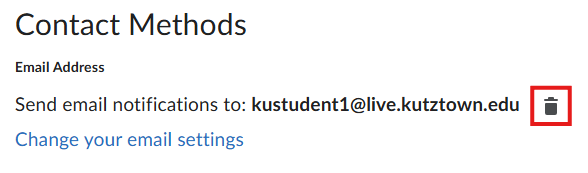
- Contact Methods allows you to set a custom email address to receive notifications. By default, all notifications go to your KU email address.
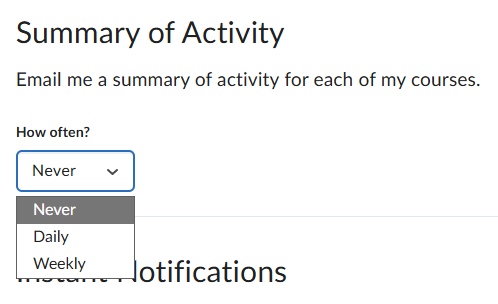
- Summary of Activity is an optional notification that sends regular digests covering activity from all of your courses. It can be sent daily or weekly.
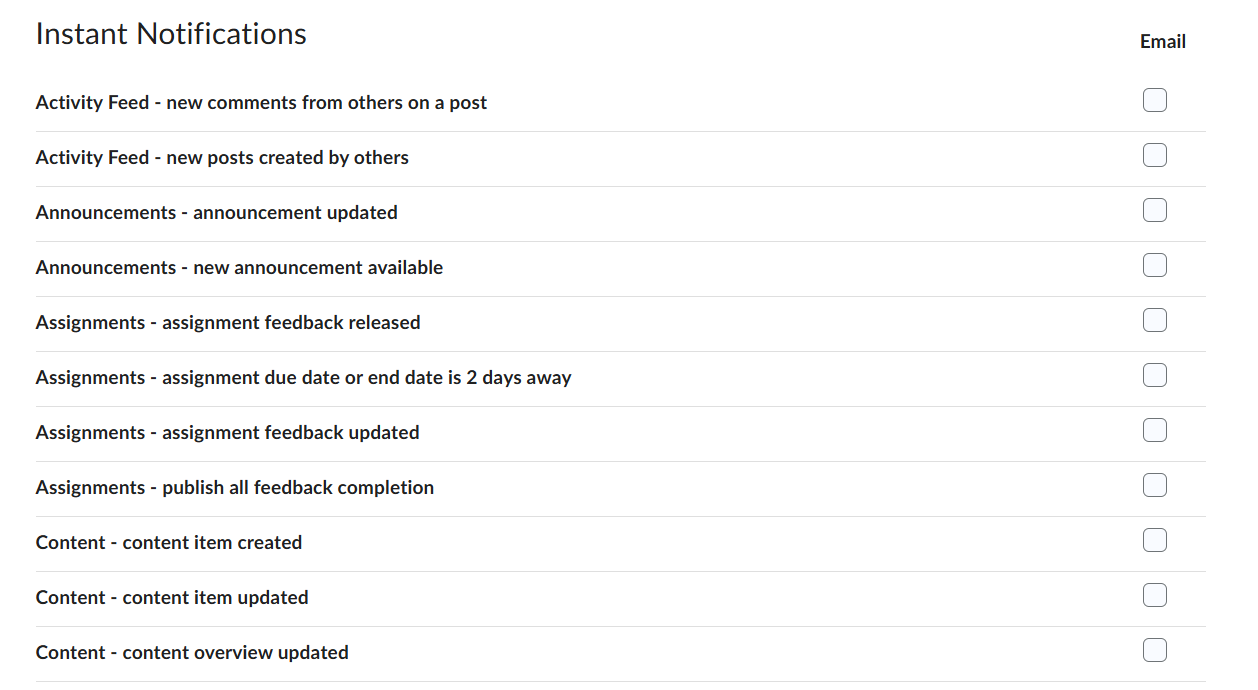
- Instant Notifications allow you to select what types of notifications you wish to receive. Check the box under Email to opt in to a notification type.
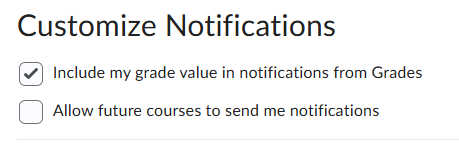
- Customize Notifications allows you to select whether you would like grade values included (where applicable) and whether future courses can send notifications.
- Exclude Some Courses allows you to opt out of notifications from specific courses. Click Manage my course exclusions to add or remove courses from this list.

Push Notifications
Push notifications are available when using the Pulse app. To enable them, tap the Kutztown University logo in the top left corner, then click Settings.
Click on Push Notifications to opt into any of the notification types shown.
Disabling D2L Notifications
To disable email notifications, navigate to Notifications and do either of the following:
- Disable all email notifications by removing clicking the trash can icon next to your email address. This works for your KU email address or a custom address.
- Disable individual notification types by unchecking the box under Email to opt out of that type.
- Turn off Activity Summary emails by changing the frequency in the dropdown to Never.
To disable push notifications, disable them individually under Push Notifications in the Pulse app or disable all notifications from the app in your phone's settings.